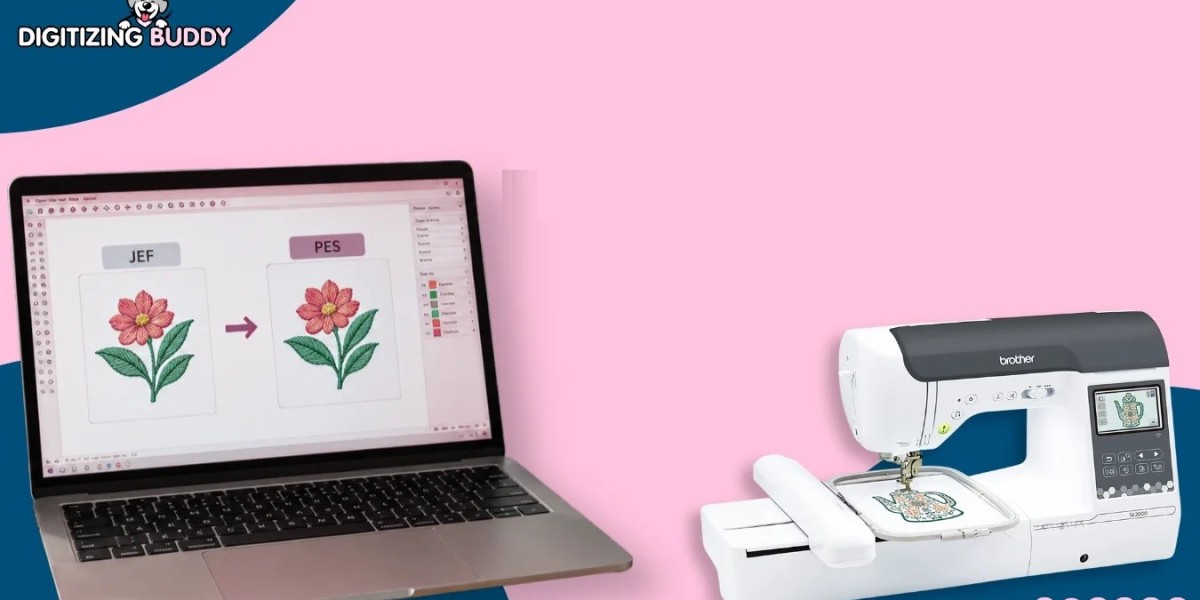

A beautiful embroidery design is only useful when your machine can read its file format. If you have a design saved as a JEF file but need to use it on a machine that requires PES, JEF to PES conversion becomes an important step.
At first, changing one embroidery format into another may sound as simple as changing a file extension. It is not. Embroidery files contain stitch information, thread colors, sequencing, and machine-specific data. A proper conversion needs to preserve these details so the design stitches correctly.
Whether you are preparing a logo, lettering, patch, or decorative pattern, understanding the conversion process can help you avoid stitching problems and wasted materials.
What Is JEF to PES Conversion?
JEF to PES conversion means changing an embroidery design saved in JEF format into PES format.
JEF is an embroidery file format commonly associated with certain embroidery machines and software. PES is another widely used embroidery format designed for compatible embroidery systems.
The important point is that conversion should preserve the actual embroidery instructions, not simply rename the file.
A successful conversion should maintain important information such as:
- Stitch placement
- Stitch sequence
- Thread colors
- Design dimensions
- Stitch types
- Needle information where supported
- Color-change instructions
The converted PES file can then be loaded into compatible equipment or embroidery software for further editing and production.
Why Do You Need JEF to PES Conversion?
The most common reason is machine compatibility.
Imagine spending hours preparing a detailed embroidery design, only to discover that your machine does not accept its original file format. Converting the file can make the design usable in a compatible PES-based workflow.
JEF to PES conversion can be useful when you need to:
- Use an existing JEF design with PES-compatible equipment
- Prepare a design for a different embroidery workflow
- Edit a design in software that supports PES
- Share an embroidery file with someone using a different format
- Maintain an existing design without recreating it from scratch
However, conversion does not automatically make a design suitable for every machine. Machine size, hoop limitations, stitch capacity, and other specifications still need to be considered.
JEF vs. PES: What Is the Difference?
Both JEF and PES are embroidery file formats, but they are not interchangeable.
A JEF file stores embroidery instructions in a format intended for compatible embroidery systems. A PES file uses a different structure and may contain additional design information depending on the version and software used.
Here is a simple comparison:
| Feature | JEF | PES |
|---|---|---|
| File type | Embroidery format | Embroidery format |
| Main purpose | Machine-readable stitch data | Machine-readable stitch data |
| Design information | Stitches, colors, sequencing | Stitches, colors, sequencing |
| Compatibility | Depends on supported equipment/software | Depends on supported equipment/software |
| Conversion possible | Yes, with compatible tools | Yes, with compatible tools |
The exact information preserved during conversion can depend on the software used and the versions of the formats involved.
How Does JEF to PES Conversion Work?
The process is usually straightforward when you have suitable embroidery software.
1. Open the JEF File
Start by importing your original JEF file into embroidery software that supports the format.
Before making any changes, check that the design opens correctly.
Look for:
- Missing elements
- Incorrect colors
- Unusual stitch paths
- Incorrect dimensions
- Broken lettering
If the original file already has problems, converting it may not fix them.
2. Check the Design
Before exporting, inspect the design carefully.
Zoom in on small lettering and detailed areas. Check the overall size and make sure the stitch pattern looks correct.
This is also a good time to confirm that the design fits your intended hoop.
3. Review Thread Colors
Thread colors can sometimes appear differently between embroidery formats or software programs.
Review the color sequence before saving the converted file.
If the exact thread shade matters for a company logo or branded design, compare the digital preview with your thread chart or production requirements.
4. Export as PES
After checking the design, select the appropriate PES format or export option available in your embroidery software.
Different PES versions may have different compatibility requirements, so select the version supported by your intended machine or software.
5. Test the Converted File
Never assume that a converted file will stitch perfectly simply because it opens correctly.
Run a test stitch-out whenever possible.
Use a similar fabric and stabilizer to the final project. This gives you a much better idea of how the converted design will perform in actual production.
Can You Convert JEF to PES Without Losing Quality?
Yes, but there is an important distinction.
Embroidery files are not image files such as JPG or PNG. Their "quality" depends heavily on the stitch data.
If the original JEF file is properly digitized and the conversion software correctly translates its information, the converted PES file can retain the essential stitch structure.
Problems can occur when:
- The conversion software does not fully support the source format.
- The wrong PES version is selected.
- Design information is lost during export.
- The original file contains unsupported features.
- The design is resized without proper stitch adjustment.
For this reason, always inspect and test the converted design before production.
Common Problems During JEF to PES Conversion
Conversion can sometimes create unexpected results. Knowing what to watch for makes troubleshooting easier.
Incorrect Thread Colors
A converted file may show colors differently from the original.
This does not always mean the stitches are wrong. The software may simply use a different thread-color library.
Changes in Design Size
Some software can interpret design dimensions differently. Always confirm the final measurements before stitching.
Missing Details
Small design elements may not appear as expected if the software does not fully interpret certain information.
Incorrect Stitch Sequence
The stitch sequence is critical. An unexpected sequence can affect registration, thread changes, and the appearance of overlapping areas.
Machine Compatibility Issues
A PES file may still fail to work properly if it is saved in a version or configuration that the target machine does not support.
Tips for Better JEF to PES Conversion
A careful workflow can prevent many common problems.
Keep the Original File
Never overwrite your original JEF file. Save the converted PES file separately.
This gives you a backup if you need to repeat the conversion.
Check the Dimensions
Always compare the converted design with the original.
Pay special attention to:
- Width
- Height
- Aspect ratio
- Hoop size
Inspect Small Text
Small lettering is one of the first areas where embroidery problems can become visible.
Make sure letters remain clear after conversion.
Review Stitch Count
If your software provides stitch-count information, compare the original and converted versions.
A major unexpected difference deserves further investigation.
Test Before Bulk Production
A small test sample can save fabric, thread, and production time.
This is especially important for logos and designs that will be reproduced many times.
When Should You Use Professional Conversion Services?
Basic file conversion may be manageable when the design is simple and the software supports both formats properly.
Professional help can be useful when the design is complicated, commercially important, or producing poor results after conversion.
For example, you may need assistance when:
- The file will not open correctly.
- The converted design has missing details.
- Stitching becomes uneven.
- Lettering looks distorted.
- The design needs resizing.
- You need a machine-ready file.
- The original file requires additional digitizing work.
At Digitizing Buddy, professional embroidery file preparation can help users handle format changes while paying attention to stitch quality and production requirements.
Is JEF to PES Conversion the Same as Digitizing?
No.
This is an important distinction.
Conversion changes an existing embroidery file from one supported format into another.
Digitizing creates embroidery stitch instructions from artwork or an image.
For example, if you already have a properly digitized JEF file, you may only need format conversion. But if you have a JPG logo and want to create a PES embroidery file, the artwork generally needs to be digitized first.
Trying to treat image conversion and embroidery format conversion as the same process can lead to poor results.
Best Workflow for Converting JEF Files to PES
For reliable results, follow this simple process:
- Keep a backup of the original JEF file.
- Open the file in compatible embroidery software.
- Check the design preview.
- Confirm dimensions and hoop requirements.
- Review stitch sequence and thread colors.
- Export the design in the required PES version.
- Reopen the converted PES file.
- Compare it with the original.
- Run a test stitch-out.
- Make corrections before final production.
This extra checking may take a few minutes, but it can prevent much bigger problems later.
Frequently Asked Questions
What is JEF to PES conversion?
JEF to PES conversion is the process of changing an embroidery design from JEF format into PES format while retaining its stitch information and other supported design data.
Can I convert a JEF file to PES for free?
Some embroidery software and conversion tools may support this process without a separate conversion fee. However, available features and PES version support vary between programs.
Will converting JEF to PES change the design?
A properly performed conversion should preserve the main stitch structure. However, colors, dimensions, unsupported features, or other details can sometimes require checking after conversion.
Can I convert a JEF file by changing the file extension?
No. Simply changing .jef to .pes does not convert the embroidery data. The file needs to be exported or converted using compatible embroidery software or a suitable conversion service.
Should I test a converted PES file before embroidery?
Yes. A test stitch-out is strongly recommended, especially for detailed designs, lettering, logos, or commercial production. It can reveal issues that are not obvious in the software preview.
Conclusion
JEF to PES conversion can make an existing embroidery design more useful when your production setup requires the PES format. But successful conversion involves more than changing a file extension.
The original stitch data, colors, dimensions, sequence, and machine compatibility should all be checked. After conversion, reopening the file and performing a test stitch-out can help confirm that everything works as expected.
For simple designs, the process may be quick. For detailed logos, lettering, or production-critical artwork, careful file preparation and professional embroidery expertise can make a significant difference. With the right workflow, you can move from JEF to PES while keeping your embroidery project accurate, clean, and production-ready.